
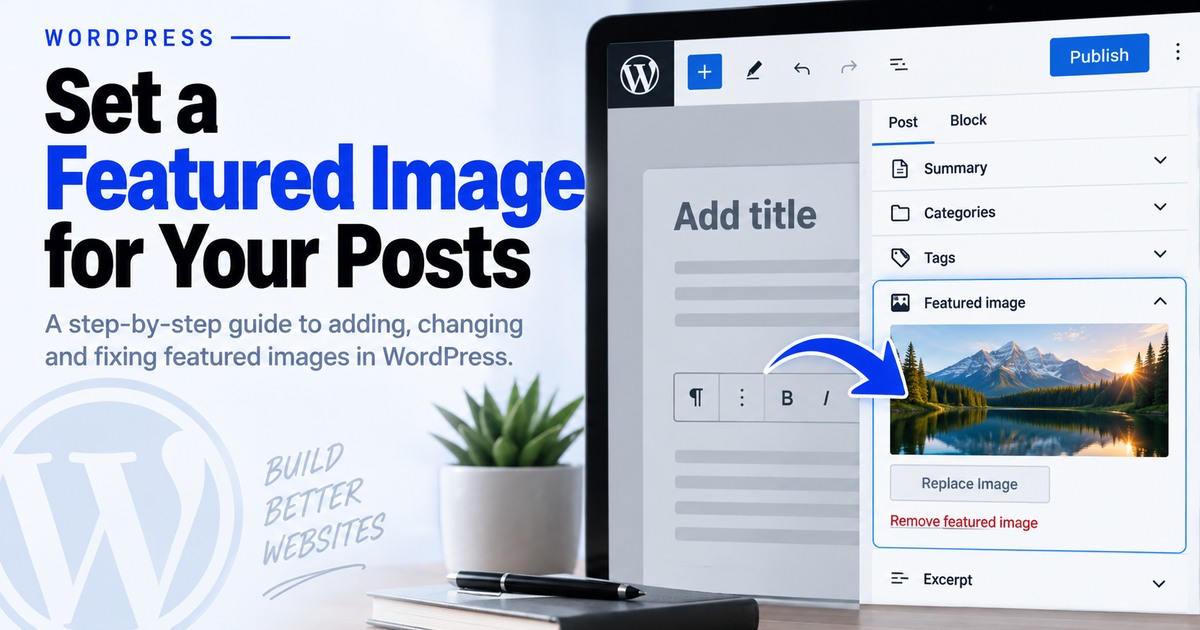
Set or Replace a Featured Image in WordPress
Your post or Fix is publishing without the thumbnail used by archive cards, post templates, and other dynamic layouts.
Open Post settings
Edit the post. In the block editor, open Settings with the gear icon in the upper-right. In the classic editor, find the Featured image box in the right column.
Open Featured image
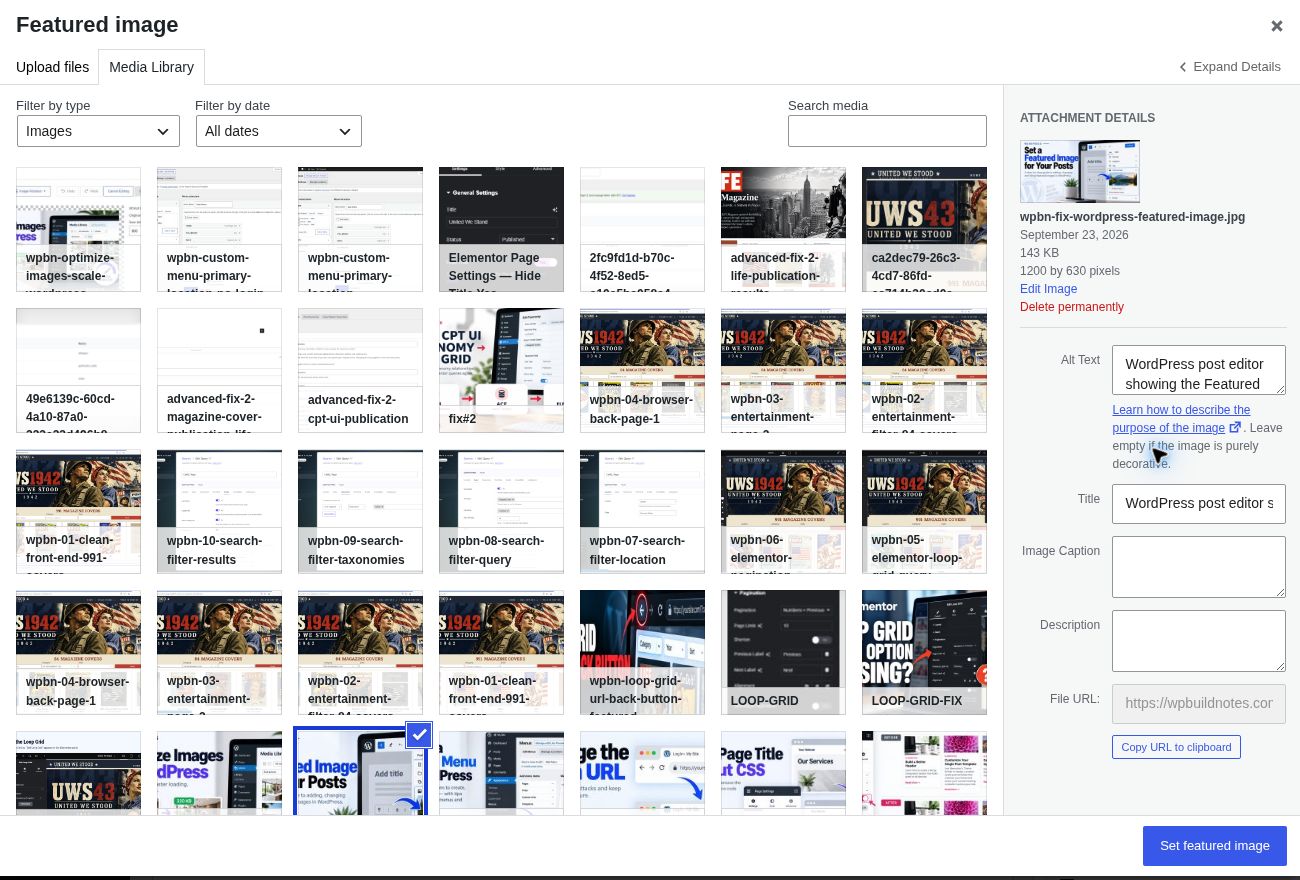
In the block editor, open the Post tab and expand Featured image. In the classic editor, click Set featured image. Choose a Media Library image or upload a new one.
Replace or remove later
To replace an image, use Replace in the block editor or click the current thumbnail in the classic editor. Choose the new image and update the post. Use Remove featured image to clear it.
Remember what it controls
The featured image is assigned to the post; where it appears on the front end depends on the active theme or template.
Still not working?
If the featured image is assigned but not visible on the live post, check the single-post/archive template. The image can be assigned correctly even when the template does not output it.
Keep building.
Find another practical WordPress fix and keep moving.