
The Problem
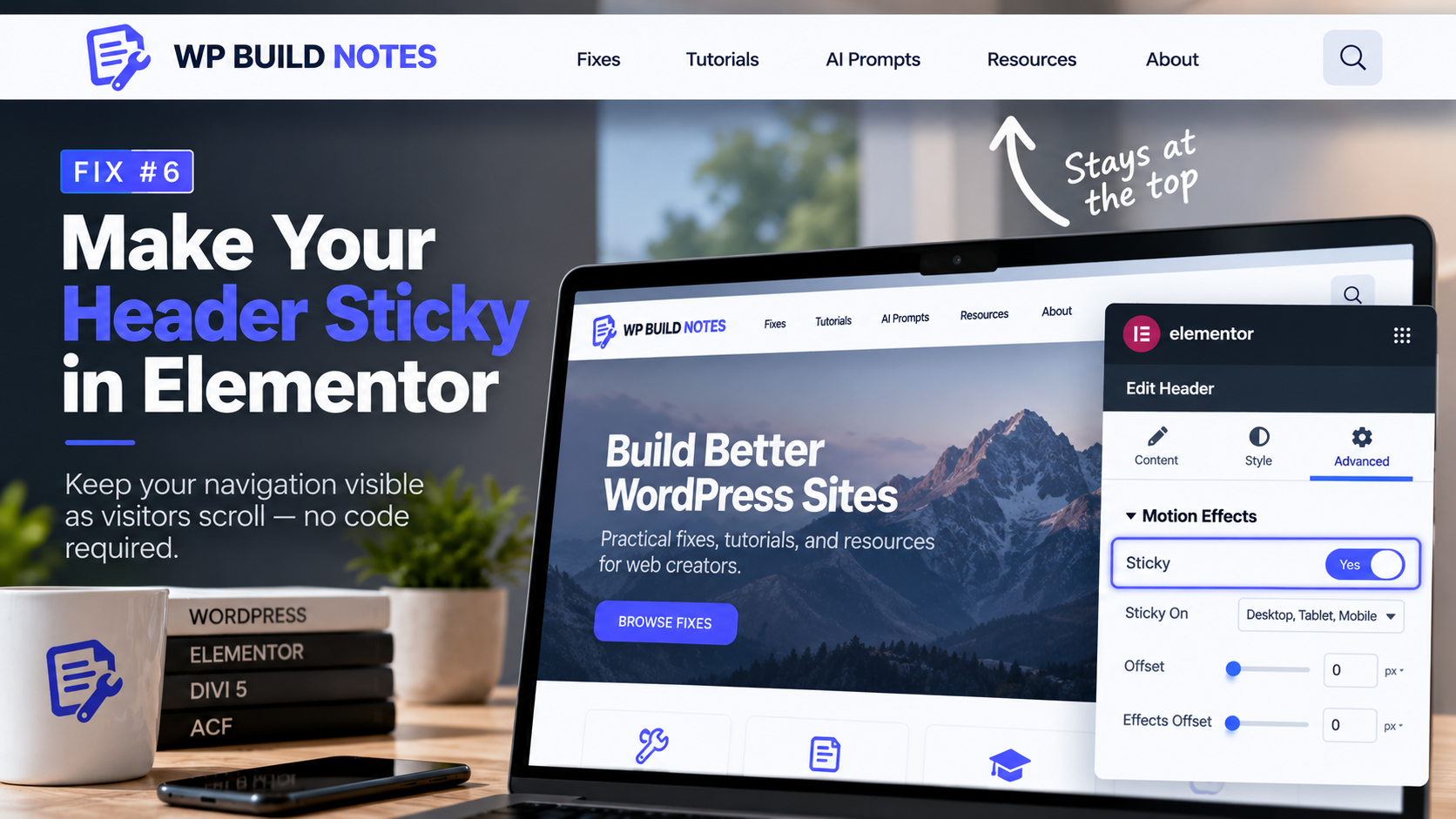
Make Your Header Sticky in Elementor
A long page can push the navigation completely off screen. Elementor Pro includes a sticky setting that can keep the header visible while visitors scroll, without custom CSS.
The Fix
1. Open the Header template
Open your site header in the Elementor editor and select the parent container that contains the logo and navigation.
If selecting it on the canvas is awkward, use Elementor’s Structure panel.
2. Open Advanced → Motion Effects
With the parent header container selected, open the Advanced tab and expand Motion Effects.
3. Set Sticky to Top
In the Sticky dropdown, choose Top. The header will now stick to the top of the viewport as the visitor scrolls.
4. Choose the devices
Under Sticky On, choose whether the effect should apply on desktop, tablet and mobile. Do not assume the same behavior is ideal on every breakpoint.
5. Set the offsets
Use Offset only when the header needs space above it. Use Anchor Offset when anchor links are landing underneath the sticky header.
6. Fix overlap with Z-index
If page content appears over the sticky header, give the header container a higher Z-index, such as 10 or 999.
7. Publish and test
Publish the Header template and test a long page on the front end. Confirm the header stays visible and does not cover anchor-linked content.
Quick Summary
Header template → select parent container → Advanced → Motion Effects → Sticky → Top. Then choose devices and adjust offsets only if needed.
Common Problem
If you cannot find the Sticky control, confirm you are using Elementor Pro and that you selected the actual parent header container rather than a child widget.