
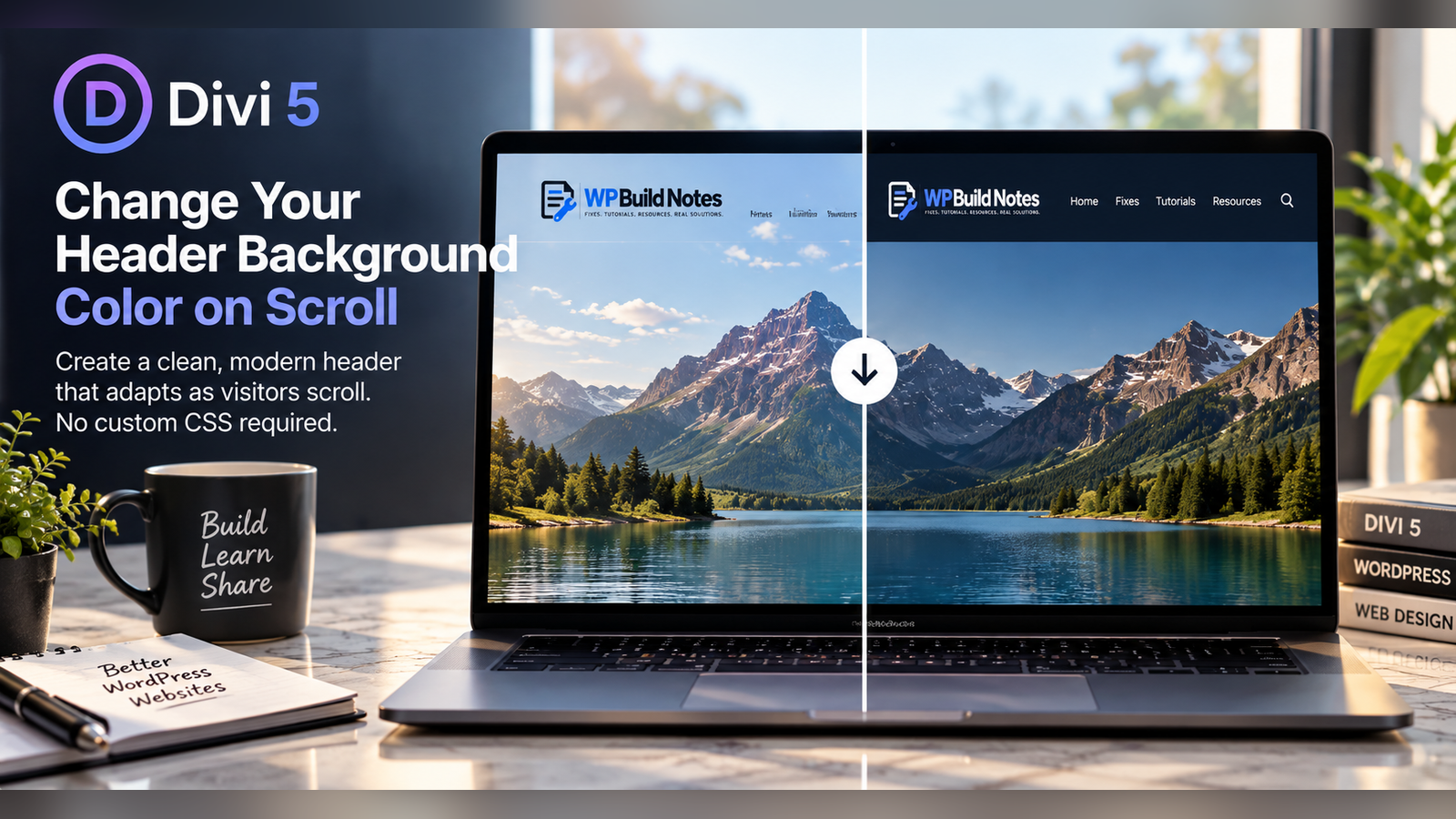
Give Your Sticky Header a Different Background While Scrolling
A transparent header can look great over a hero image, but once visitors scroll onto lighter page content the menu may become difficult to read. Divi 5 lets you use one background in the normal state and another in the sticky state without custom CSS.
1. Open the Header in Theme Builder
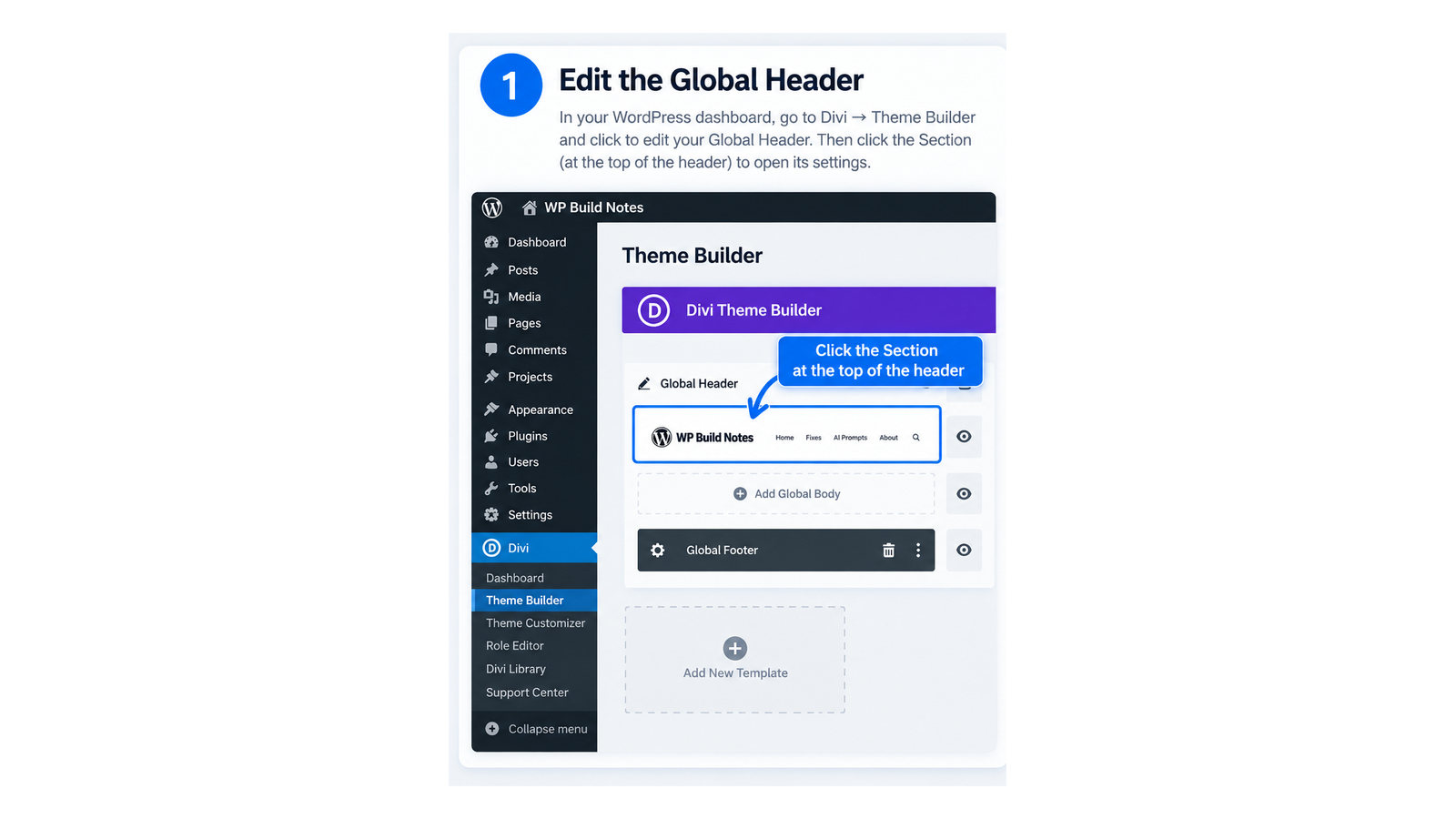
Go to WordPress Dashboard → Divi → Theme Builder and edit the header you want to change. Open the settings for the Section that contains the full header.
2. Make the Header Sticky
Open Advanced → Scroll Effects and set Sticky Position to Stick to Top.
3. Set the Normal Header Background
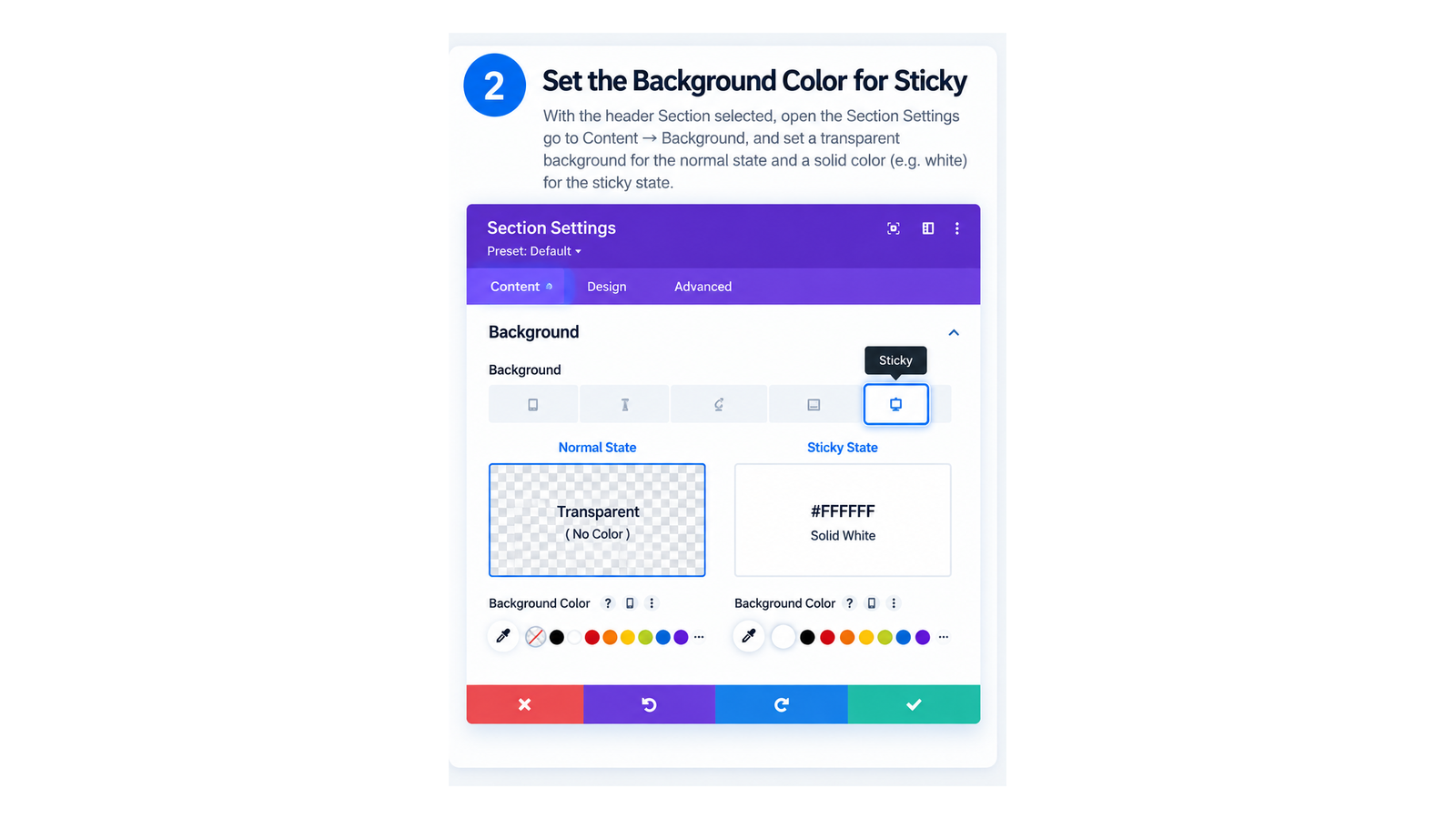
Go to Content → Background. Set the normal desktop state to the background you want before scrolling. For an overlapping hero header, that will often be transparent.
4. Set the Sticky-State Background
In the Background controls, activate the Sticky State for Background Color. Choose the color you want the header to use after it becomes sticky—for example white, dark navy, or a slightly transparent solid color.
5. Check Menu and Logo Colors
If your normal header uses white menu links over a dark hero image, a white sticky background may make those links disappear. Use Divi’s sticky-state controls on the Menu module to give the menu text—and, if necessary, the logo—a contrasting sticky-state treatment.
6. Preview the Transition
Save the header and preview a page with enough content to scroll. The header should begin with its normal background and change to the sticky-state background when it reaches its sticky position.