
The Problem
Create Global Color Variables in Divi 5
A brand color has been typed separately into buttons, headings, and backgrounds. When the color changes, every instance must be found and updated. Divi 5 Global Variables, labeled Design Variables in the interface, let you define a color once and reference it in multiple design fields.
The Fix
Step 1
Open the Variable Manager
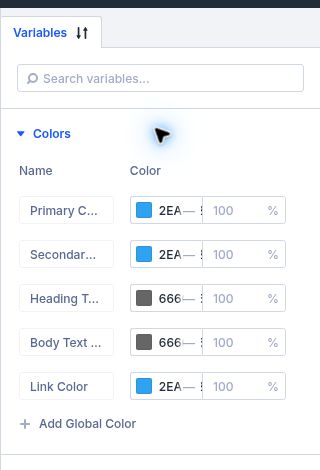
Enable the Divi 5 Visual Builder on a page and open the Variable Manager from the builder controls. Choose the Colors tab.
Step 2
Add the brand color
Choose Add Global Color. Give the variable a descriptive name such as Brand Blue and enter the color value with the picker or the exact value from your brand palette.
Step 3
Apply the variable to a field
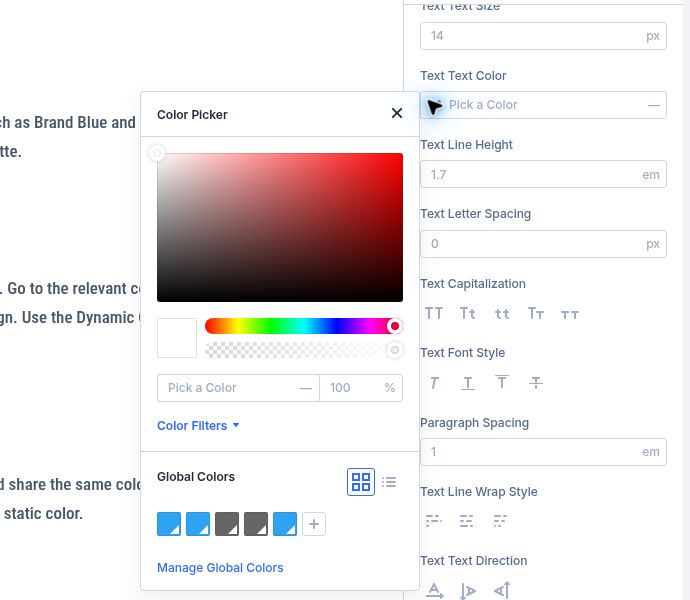
Open a section, row, column, or module setting that uses the color. Go to the relevant color field, such as Background Color under Content or Text Color under Design. Use the Dynamic Content icon beside the field and select your Global Color.
Step 4
Connect other elements
Repeat for each heading, button, border, or background that should share the same color. Confirm the field is connected to the variable instead of holding a separate static color.
Step 5
Change the color centrally
Return to the Variable Manager and edit the variable value. Preview the page and confirm each connected field updates while elements using other colors stay unchanged.
Quick Summary
Visual Builder → Variable Manager → Colors → Add Global Color → name and set the value → use Dynamic Content on design color fields to select it.
Troubleshooting
Changing the variable did not affect an element
Check that the element’s field is connected to the variable through Dynami