
Create Font Variables in Divi 5
A site’s headings and body text use font families selected separately in many modules. Changing the typeface means hunting through pages and templates. Divi 5 font variables let you save reusable font-family choices and connect them to supported text fields.
Open the Variable Manager
Open any page in the Divi 5 Visual Builder. Select the Design Variable icon in the left toolbar. You can also hover over a supported font field, open its Dynamic Content menu, and choose Manage Variables.
Open Fonts
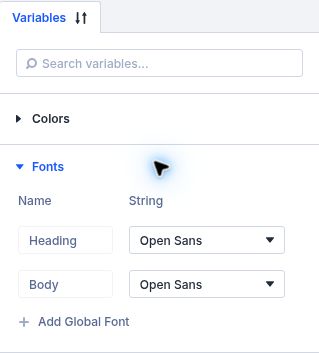
In the Variable Manager, choose Fonts. Divi may show Heading and Body fonts already defined in the Theme Customizer. Use those when they match your site roles, or add a clearly named variable for another role such as Accent Font.
Add or update a font variable
Choose the add control to create a variable, give it a role-based name such as Heading Font, then select a font family from the font picker. Divi supports its available font choices, including Google Fonts and uploaded custom fonts. If you are editing an existing variable, change its selected family instead.
Save the variable
Click Save in the Variable Manager. Unsaved edits are discarded if you close or cancel the manager.
Apply it to a heading
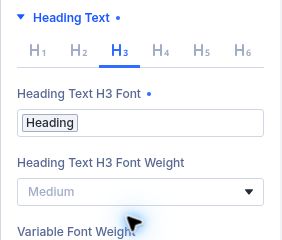
Open a heading module’s Design settings and locate the heading font family field. Hover over that field, click its Dynamic Content icon, and select the font variable. The field should show the variable chip. Repeat for other heading levels or templates where the same role should apply.
Apply a body font variable
In a Text module, open Design → Text → Text Font. Use the Dynamic Content icon and choose the Body Font variable. Repeat only on fields where you want the same body typeface.