
The Problem
Create and Apply a Divi 5 Module Preset
Buttons or blurbs share a design, but styling each one separately makes updates slow and inconsistent. A Divi 5 Element Preset saves the modified design settings for one element type so you can reuse and update them together.
The Fix
Step 1
Style one example module
Open the page in the Visual Builder. Choose one module, such as a Button, and set its typography, colors, spacing, border, and other styles the way you want the shared design to look.
Step 2
Create a preset from the module
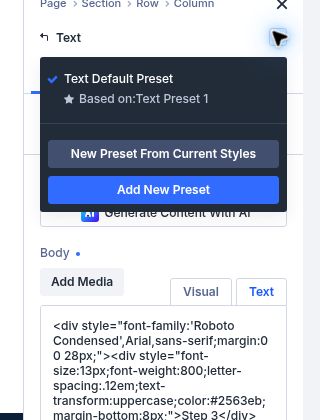
Open the module settings and use the Preset control near the top of the panel. Choose the option to create a new preset from the module’s current styles, then give it a clear name such as Primary Button.
Step 3
Apply it to matching modules
Open another module of the same type. Open its Preset menu and choose the preset you created. Repeat for the other buttons that should share the style. A Button preset applies to Button modules, not to unrelated module types.
Step 4
Make a later design change
Use the Preset control to edit the saved preset. Remember that editing it changes every module that uses it across the site.
Step 5
Check exceptions before saving
Preview the page and inspect any button that should look different. Use a different preset for a distinct style so a global update does not unintentionally change it.
Quick Summary
Style one module → open its Preset menu → create a preset from current styles → name it → apply to other modules of the same type → check sitewide effects when editing.
Troubleshooting
The preset is not listed
Presets are scoped to element type. Check that you are editing the same kind of module you used to create it.
All matching modules changed
That is expected when they use the same global preset. Create a separate preset for elements that need a different appearance.