
Build a Dynamic Dropdown Menu with Divi 5 Menu Loops
A custom Divi 5 dropdown is difficult to maintain when every submenu label and URL is entered by hand. A Menu Loop can pull those links from a WordPress menu while you control the header’s design in Divi.
Create a dedicated WordPress menu
In WordPress, open Appearance → Menus and create or select a menu that contains only the links for this dropdown. Arrange the items in the order you want and save the menu. A separate menu for each dropdown keeps the loop query focused.
Open the global header in Divi 5
Go to Divi → Theme Builder and open the Global Header in the Visual Builder. This keeps the navigation reusable across the site. The examples below use Divi 5’s Link and Dropdown modules.
Build the dropdown structure
Add a Link module for the top-level item and set its label and destination manually. Place a Dropdown module inside that Link module. Inside the Dropdown, add one Link module. That single nested Link is the template Divi repeats for each submenu item.
Turn the nested Link into a Menu Loop
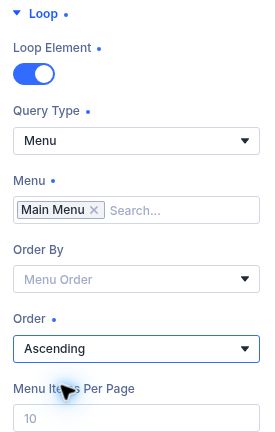
Select the nested Link module. Open Content → Loop, enable Loop Element, set Query Type to Menu, and select the dedicated submenu you saved in WordPress. Set Order By to Menu Order and Order to Ascending so the output follows the menu order.
Connect the label and destination dynamically
In the nested Link module, set its text to Loop Menu Text and its Link destination to Loop Menu Link. Each repeated item will then use the label and destination stored in its matching WordPress menu item.